
2.7 KiB
USB Camera LCD Display Example
| Board | Support Status |
|---|---|
| ESP32-S3-BOX | NO |
| ESP32-S3-BOX-Lite | NO |
| ESP32-S3-BOX-3 | YES |
This example demonstrates how to use the usb_stream component to acquire a USB camera image and display it adaptively on the LCD screen.
- Pressing the boot button can switch the display resolution.
- For better performance, please use ESP-IDF release/v5.0 or above versions.
- When the image width is equal to the screen width, the refresh rate is at its highest.
Hardware
- An ESP32-S3-BOX-3 development board with 320*240 LCD.
- A USB Type-C cable for power supply and programming.
- A USB camera (Can be connected to USB-A port or expansion connector).
Note:
- The USB camera used in this demo has some limitations. The USB camera must be compatible with
USB1.1full-speed mode and supportMJPEGoutput, for more details, please see the USB Stream User Guide.- For access to the USB camera sample, you can visit TaoBao or Aliexpress.
Known Issues
-
Error message with
A fatal error occurred: Could not open /dev/ttyACM0, the port doesn't exist. Please first make sure development board connection, then make board into "Download Boot" mode to upload by following steps:- Keep pressing "BOOT" button.
- Short press "RST" button.
- Release "BOOT".
- Upload program and reset.
-
Please use the USB-C port on the main unit to flash firmware. Once flashing is complete, connect the USB camera to the
ESP32-S3-BOX-DOCKUSB-A port, and switch your USB cable to the USB-C port of theESP32-S3-BOX-DOCK. Please note don't connect the USB camera while flashing the MCU. -
The USB-C port on the
ESP32-S3-BOX-DOCKonly support5 Vpower input, which ensures proper power supply to the USB camera. Please do not use it to flashing firmware. -
For log debugging, please access the serial connection by a standard
USB-To-TTLdevice through the 12-pin female header of theESP32-S3-BOX-DOCKwithU0TXDandU0RXD.
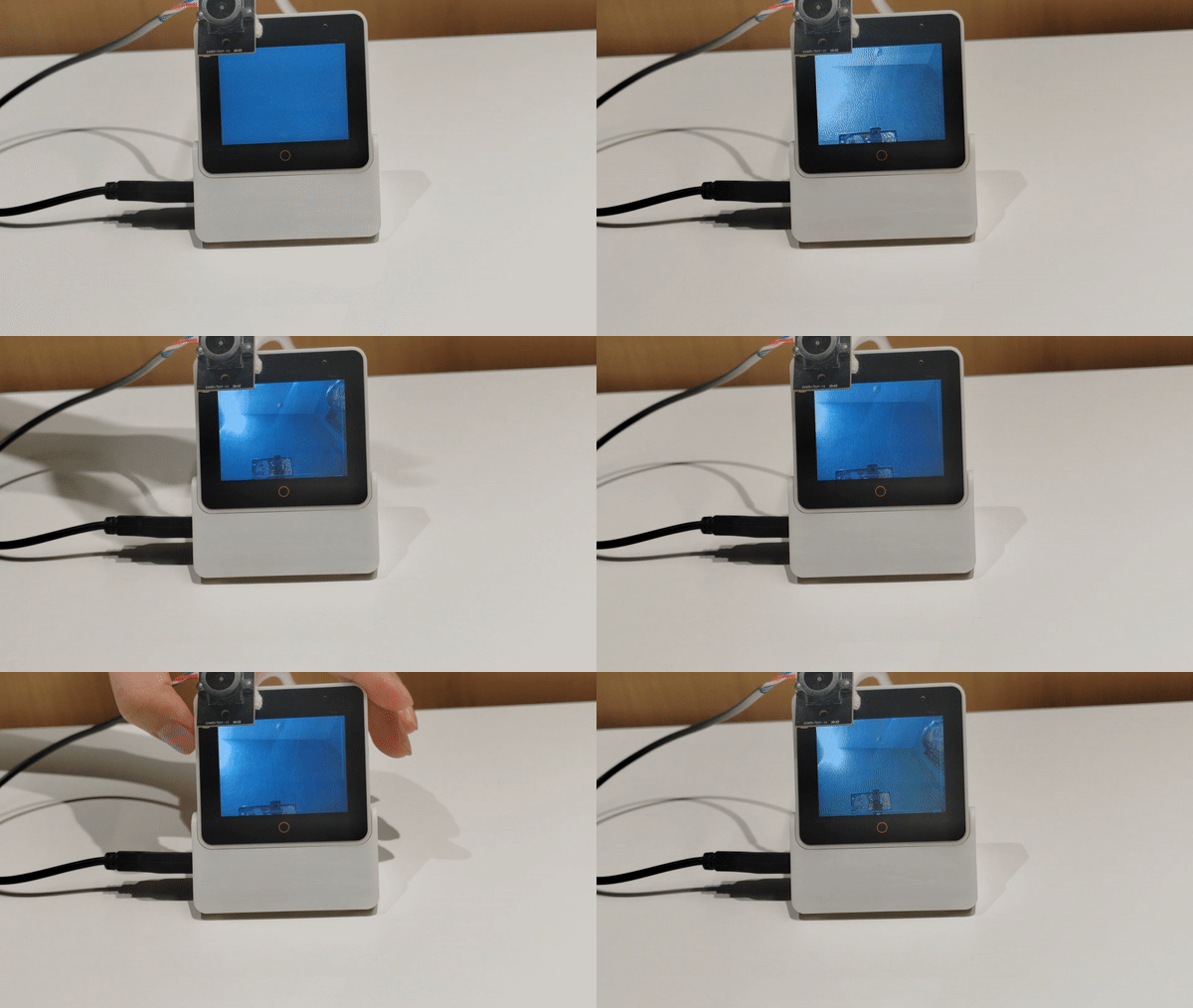
The result after the demo is correctly programmed and connected is as follows:
How To Use
- First delete existing
build,sdkconfig,sdkconfig.old.
idf.py set-target esp32s3
- Compile and burn.
idf.py build flash monitor